
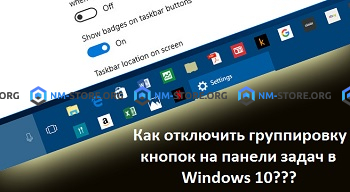
Agree that there are situations when something new that was added to the "top ten" relatively recently is not very convenient and practical for you personally, as the developers of this software meant and you would like to abandon the innovative options to make the system such , with which it is much more convenient to work. It's about one of these add-ons that looks like a grouping of buttons on the taskbar, and it's going to be a speech today.
As you probably already guessed, we'll talk about how to disable grouping of buttons on the taskbar in Windows 10, because even though this option was invented to save the workspace on the "panel" it still seems to someone very uncomfortable. Therefore, in order to perform some changes in the system, you have to do the following: move the mouse cursor over the taskbar and right click on it, you should see a short context menu in which you will need to find the "Panel Options" tasks "and pointing at it with the mouse cursor, make a click with the left mouse button.

Suppose that at the first stage, you did everything right, which allowed you to get into the window with the name "Taskbar", which means that here you will need to turn to the item "Group buttons on the taskbar" and in its context menu, select "Never".
Pay attention to the fact that in order to completely refuse the grouping of buttons on the taskbar, you should refer to the "When the taskbar is full", which will allow the system to automatically group buttons on the panel only when there is no panel at all free space.

Thus, if you manage to disable grouping of buttons on the taskbar in Windows 10, in some cases, you can perform a search for the application you need more quickly, especially if you are using a large monitor for work.


